

How-to / Light & sky
How to replace the sky in a listing photo
Swap a flat, gray, or blown-out sky for a clean blue one while keeping the home and grounds unchanged — the lightest-touch fix for a weather-spoiled exterior.
- Time
- About 30 seconds
- You'll need
- An exterior photo with a dull sky (JPG or PNG)
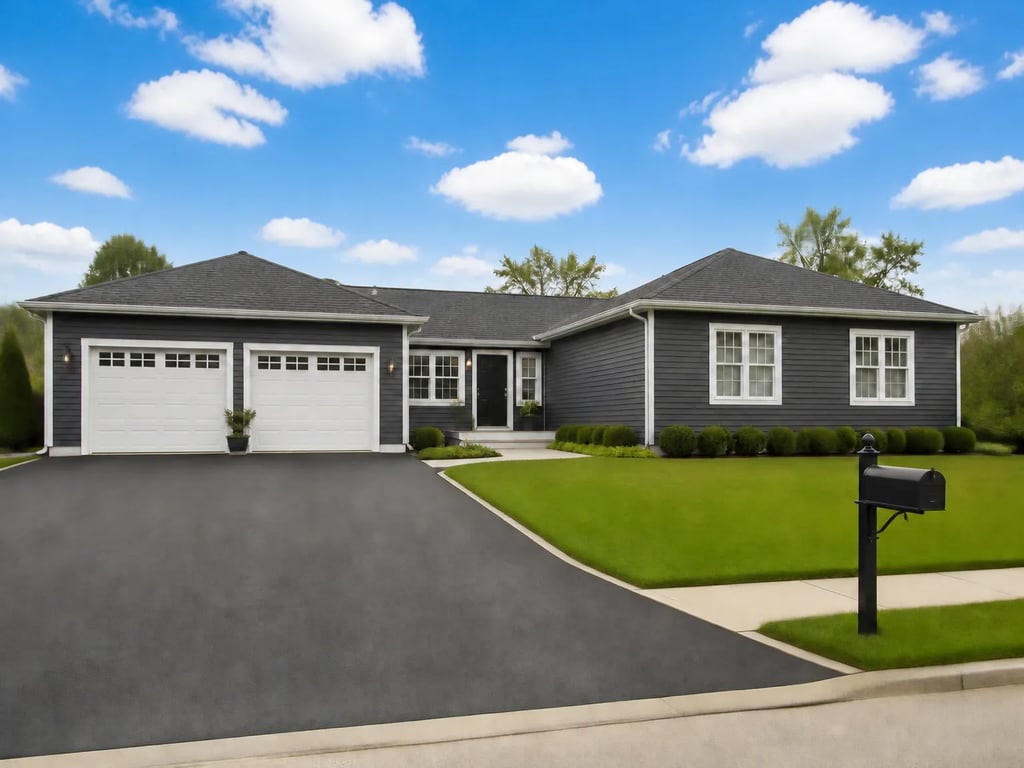 BeforeAfter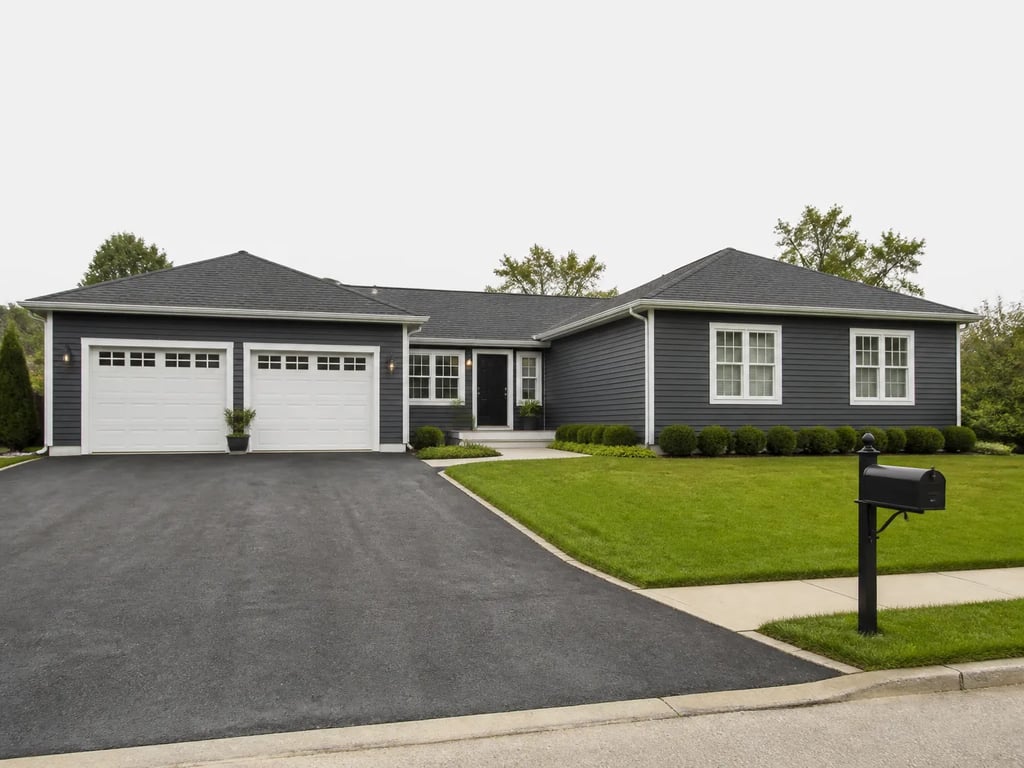
In short
Swap a flat, gray, or blown-out sky for a clean blue one while keeping the home and grounds unchanged — the lightest-touch fix for a weather-spoiled exterior.
- 1
Upload the exterior photo
Upload the exterior shot whose sky came out gray, white, or overexposed.
- 2
Select sky replacement
Choose the sky replacement tool. Only the sky changes — the house, roofline, trees, and lawn stay as shot.
- 3
Pick a sky
Choose a clear blue sky or one with soft, natural clouds. Match it to the photo's light direction and time of day.
- 4
Generate and check the match
Run the swap, then confirm the new sky agrees with the scene's light and that reflections in windows and on wet surfaces stay believable.
- 5
Download the photo
Download the corrected image. Swapping weather is widely accepted as long as nothing about the home itself is altered.
A flat gray sky drains the appeal from an otherwise strong exterior; a clean one restores it. It's the smallest edit with an outsized effect on the first impression. For the warm glowing look instead, see how to convert a day photo to dusk.
Do this in Vestaro
Sky replacement tool→Related how-tos
Frequently asked
When should I replace the sky versus convert to dusk?
Replace the sky when only the sky is the problem and you want a clean daytime look. Convert to dusk when you want the warm twilight aesthetic with glowing windows, which is a full relight.
Will a replaced sky look fake?
Not when the new sky matches the photo's light direction and color, and reflections stay consistent. A mismatched sky is the most common tell of a careless edit.